Is your mouse glitching right when you need to land a hit? Cursor stutter and drift in Minecraft Bedrock 1.21 are totally frustrating.
Let’s fix those settings and get your aim back on track today.
Key Takeaways
- Disable ‘Enhance pointer precision’ in Windows settings to stop cursor drift.
- Clean your mouse sensor and mousepad to ensure smooth physical tracking.
- Lower Render Distance and disable fancy graphics to reduce input lag.
- Set your mouse polling rate to 1000Hz for the most responsive aiming.
- Update graphics drivers to ensure compatibility with the latest update.
Troubleshooting Mouse Cursor Issues in Minecraft Bedrock 1.21: Stutter and Drift
Understanding Cursor Stutter vs. Drift
Mouse cursor issues in Minecraft Bedrock 1.21 can really ruin your day.
Stuttering feels like tiny, jerky pauses in movement. Drift, though, is different. Drift means your cursor slowly slides away from where you aim it.
These problems are super frustrating, especially during intense PvP.
Pinpointing the Source of the Problem
When you see stutter or drift, the issue usually stems from one of three places.
It could be your physical mouse hardware or pad. It might be your operating system settings.
Or, sometimes, it’s just a funky game setting.
Hardware Checks: Mouse and Pad
First, let’s check the simple stuff. Is your mouse sensor dirty? Dust or hair messes up tracking, causing stuttering instantly.
Also, check your mousepad surface. Is it consistent? Inconsistent surfaces lead to drift, making aiming tricky.
We have a guide on How to Choose a Mousepad for Minecraft PvP Sensitivity that might help.
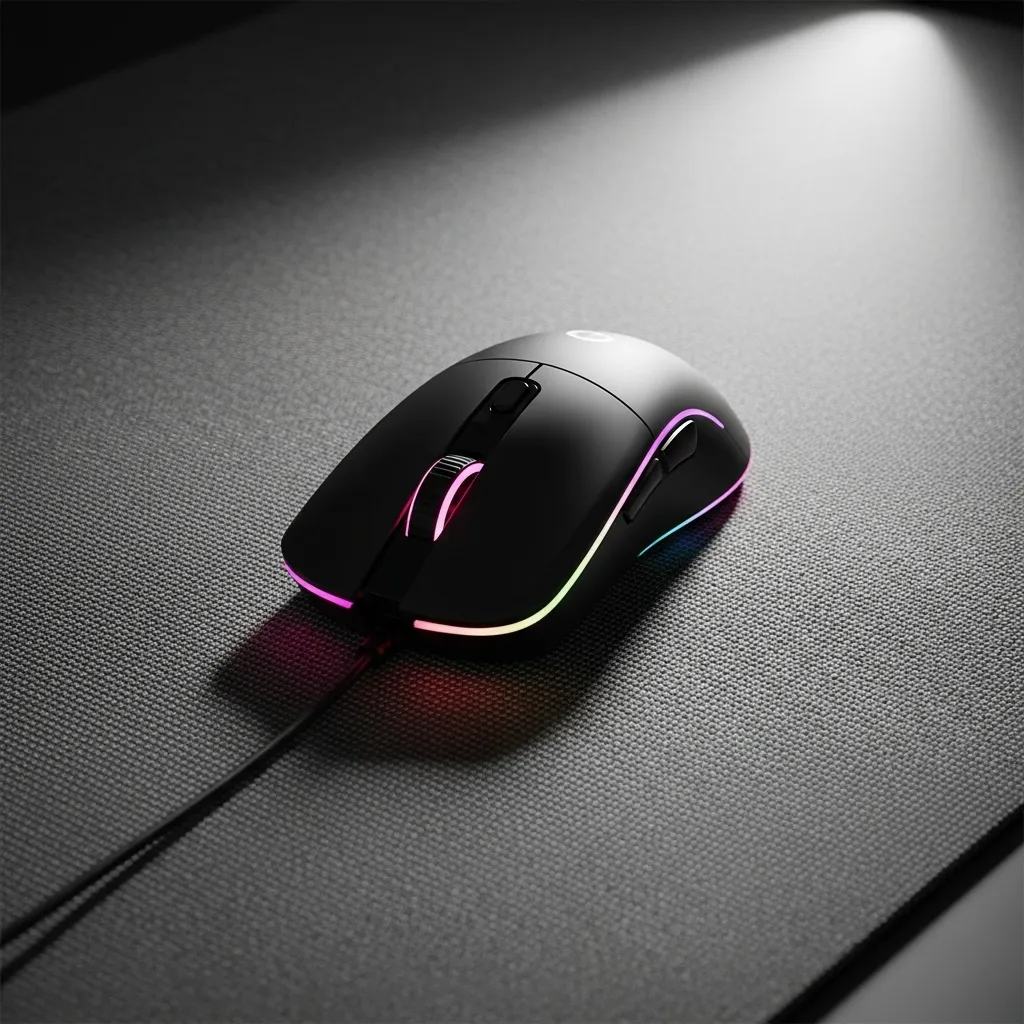
Software Settings Deep Dive
Windows or console settings often cause these issues accidentally.
We need to turn off anything that tries to “help” your aim. Mouse Acceleration is the biggest offender for drift.
If enabled, the cursor moves farther the faster you move the mouse. This destroys muscle memory for consistent aiming.
Disabling Acceleration and Enhancing Precision
You must disable Mouse Acceleration in your OS settings.
On Windows, look under Mouse Properties for Pointer Options. Make sure “Enhance pointer precision” is completely unchecked.
This feature is essentially the same as game acceleration. We are also looking at DPI, which is your mouse’s Dots Per Inch.
A DPI setting that is too high can sometimes lead to minor jitter on cheaper sensors. Many Bedrock players find success in the 400 to 1600 DPI range.
A bar chart showing preferred mouse DPI settings among the community. 800 DPI is the most common setting.
For Bedrock 1.21 specifically, aim assist tweaks can sometimes interact poorly with raw input.
If you are using any third-party software, try disabling it.
In-Game Solutions for Minecraft Bedrock 1.21
Once the OS is clean, we look inside Minecraft Bedrock 1.21. Look for any setting called “Mouse Acceleration” in the game options.
If you find it, turn that setting OFF immediately. Stutter can also be caused by Frame Rate Fluctuations.
If your FPS drops suddenly, your cursor input will appear delayed.
Try these steps to stabilize your frame rate:
- Cap your frame rate at a stable number.
- Lower your Render Distance slightly.
- Disable fancy graphics like smooth lighting temporarily.
Sometimes, reviewing your combat controls helps too, as input queuing can cause perceived lag.
Check out guides on Optimized Keybinds for Mace PvP Bedrock Edition Guide for context.
If you continue to struggle with input responsiveness, have you considered adjusting your polling rate, which is how often your mouse reports its position?
Step 1: Immediate 1.21 Optimization Checks (In-Game & Drivers)
When you notice that annoying cursor stutter or drift in Minecraft Bedrock 1.21, the first step is always to check the basics.
These immediate checks can save you a ton of headache later on.
Checking In-Game Settings
We need to make sure Minecraft isn’t fighting your hardware right out of the gate.
1. Video Settings Check
Go straight to your Video Settings menu. Look for anything that might tax your system heavily.
- Turn down the Render Distance significantly. Lower is better for stability.
- Set Simulation Distance as low as you are comfortable with.
- Disable Fancy Graphics, Smooth Lighting, and fancy clouds if they are on.
2. Touchscreen & Mouse Acceleration
This is a big one for erratic movement.
Bedrock sometimes uses Windows input smoothing which causes drift. If you are on a touch device, try disabling the on-screen touch controls.
More importantly, ensure Windows Mouse Acceleration is off. This setting messes with consistency.
If you’re serious about precision, you should read up on setting up your mouse for consistent aim.
For instance, finding the right mousepad can make a difference in how smoothly you can track targets, whether you are in a massive world or just trying to fix mouse cursor stutter and drift in Minecraft Bedrock 1.21.
Check out how mousepads affect your tracking.
Updating Your Drivers
Outdated graphics drivers are classic performance killers.
Stuttering is often a sign that your GPU doesn’t know how to talk to the new 1.21 build effectively.
1. Graphics Card Drivers
- Check NVIDIA, AMD, or Intel’s website for the absolute latest drivers.
- Do not rely solely on Windows Update for this critical step.
- New game versions often require specific driver optimizations.
2. Mouse/Input Drivers
While less common, check if your mouse manufacturer has any specific drivers or software updates.
Sometimes, custom mouse software overrides Windows settings, causing input weirdness.
System Resource Check
Stuttering isn’t always about graphics. It can be about competition for resources.
Open your Task Manager while Minecraft is running.
See what else is eating up CPU or RAM in the background. Close unnecessary apps.
A bar chart showing estimated CPU usage breakdown during a typical Bedrock session.
If you have many processes running, the game struggles for attention.
This resource fight can manifest as frustrating mouse input delay.
Have you noticed if your cursor issues get worse when you are loading new chunks?
Step 2: Advanced Input & Hardware Diagnostics (Polling Rate, OS Settings)
We have covered the basics, but now we need to get technical. Cursor stutter in Minecraft Bedrock 1.21 can sometimes come from the hardware itself.
Understanding Mouse Polling Rate
Your mouse sends updates to your PC many times per second. This is the polling rate, measured in Hertz (Hz).
A low polling rate means fewer updates. This can feel like stuttering or lag when you are trying to make tiny adjustments in Minecraft.
Most gaming mice run at 1000Hz, which is 1000 updates every second. This is usually ideal.
If your rate is lower, like 500Hz or 125Hz, your cursor might not keep up perfectly.
Checking and Adjusting Polling Rate
You usually need your mouse’s specific software to change this setting. Look for options labeled “Polling Rate” or “Report Rate.”
We suggest sticking to 1000Hz for the best Bedrock experience.
It is crucial to link this hardware setting to your in-game performance, especially when aiming precisely for those critical PvP moments.
For more on aiming precision, check out our guide on Master Minecraft PvP Crosshair Placement for Max Reach.
A bar chart showing common mouse polling rates, with 1000Hz being the standard recommendation for gaming.
Operating System Interference
Windows (and other OSs) can sometimes fight with games over mouse control. This is often called “Mouse Acceleration.”
Mouse acceleration changes how far the cursor moves based on how fast you move the mouse. It feels inconsistent.
In Minecraft Bedrock, input is generally raw, but the OS settings can still interfere before the game gets the data.
Disabling OS Mouse Acceleration
This is essential for consistent aim. You need to turn off the feature that Windows calls “Enhance pointer precision.”
Here is how you generally find that setting on Windows:
- Open your Mouse Properties in the Control Panel.
- Go to the “Pointer Options” tab.
- Uncheck the box labeled “Enhance pointer precision.”
This ensures a 1:1 movement ratio, which is what you want when trying to nail that perfect shot or block placement.
Driver Health Check
Ensure your mouse drivers are up-to-date. Old drivers can cause all sorts of weird input issues, including skipping frames.
Use the manufacturer’s website, not just Windows Update, for the best results.
Sometimes, other input devices, like drawing tablets or game controllers plugged in, can confuse the system too.
Try unplugging anything you aren’t actively using while testing the Minecraft stutter issue.
You might wonder: does fiddling with your mouse’s polling rate actually make a difference in your Bedrock PvP performance, or is it just placebo?
The answer is often in the feel of the aim.
Long-Term Fixes: Addressing Corrupted Data and System Stability
We’ve looked at quick fixes, but sometimes the problem runs deeper than a simple setting tweak.
If your mouse cursor keeps stuttering or drifting in Minecraft Bedrock 1.21, corrupted game files are a big suspect.
Think of it like this: your game’s instructions are jumbled up. This causes your aiming input to skip frames.
Checking for Corrupted World Data
Worlds that have been around a long time can accumulate small errors. These errors might not crash the game, but they can cause performance hiccups.
It is smart to check your frequently played worlds for corruption.
How to Backup and Test Worlds
Always start by making a safe copy of any world you care about. You do not want to lose progress!
To fix these persistent stutter and drift issues in Minecraft Bedrock 1.21, try this:
- Go to the main World Settings screen.
- Select the world giving you trouble.
- Look for the “Backup World” option and save it somewhere safe.
- Load the original world and see if the stutter persists in a new area.
If the stuttering stops in the test area, the world data might be the issue.
Optimizing System Memory for Stability
Bedrock Edition can be demanding, especially on mobile or lower-end PCs. When your device runs out of memory, things start to lag.
Stuttering often happens when the system can’t keep up with resource loading.
We should always aim for smooth, consistent performance.
If you are struggling with general performance alongside cursor issues, checking your hardware usage is key.
Here is a look at typical system resource allocation when running demanding games:
| Resource | Optimal Usage While Gaming | Warning Sign |
|---|---|---|
| RAM (Memory) | 50-85% | Consistently over 95% |
| CPU (Processor) | 60-90% | Sustained 100% usage |
| Disk Read/Write | Low and steady | Frequent spikes over 50MB/s |
If you see those warning signs, you might need to close background apps. This frees up system resources for Minecraft.
Driver Management and Updates
Outdated or corrupt device drivers are often silent killers of smooth gameplay. This is true for graphics cards and even input devices like mice.
Ensure your mouse driver is the latest version provided by the manufacturer.
Also, update your graphics drivers directly from NVIDIA, AMD, or Intel’s websites. This step is crucial for any display-related issue.
For more ways to ensure smooth gameplay, check out our guide on Top Low Lag PvP Shaders Minecraft Bedrock 1.21 FPS Boost.
You might wonder if corrupted save files or system instability is the more common cause of random input issues.
While hardware is often to blame, software stability is the foundation.
Taming the Cursor: Your Final Takeaway
Dealing with mouse stutter or drift in Minecraft Bedrock 1.21 is super annoying.
But remember, it usually boils down to three main areas: hardware, OS settings, or in-game options.
By turning off Mouse Acceleration in Windows and checking your mouse sensor, you tackle the biggest culprits.
Keep those drivers updated and your frame rates steady, and you should be back to perfect aiming in no time!
Frequently Asked Questions
What is the main difference between mouse stutter and mouse drift in Minecraft?
Stuttering feels like tiny, jerky pauses when you move the cursor.
Drift is when the cursor slowly slides away from where you are trying to keep it aimed.
How do I fix Mouse Acceleration on Windows for Minecraft?
You need to go into Mouse Properties in Windows settings.
Look under Pointer Options and make sure “Enhance pointer precision” is unchecked.
This is key for consistent aiming!
Can my mouse DPI cause stuttering in Bedrock 1.21?
Yes, sometimes very high DPI on cheaper sensors can cause minor jitter or stutter.
Many players find a sweet spot between 400 and 1600 DPI for stability.
What is mouse polling rate and should I change it?
Polling rate is how often your mouse reports its position to the PC, measured in Hz.
If it’s low (like 125Hz), it can feel like stuttering. Most gamers aim for 1000Hz.